
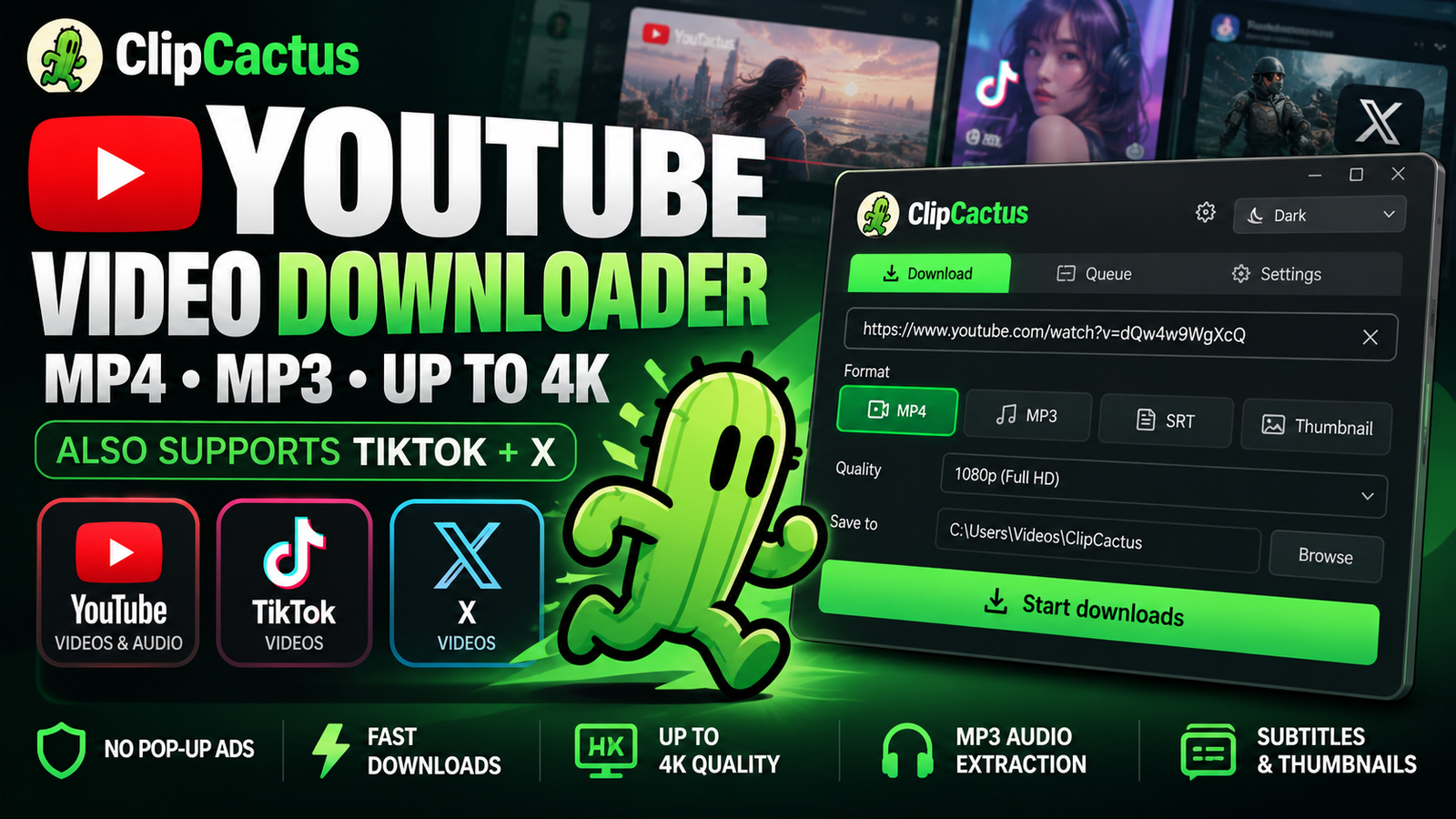
Downloading YouTube videos shouldn’t mean navigating through endless advertisements, suspicious pop-ups, redirects, or websites that barely work. Whether you’re trying to save a video in 1080p or 4K, extract audio as an MP3, or download subtitles for editing, the process should be straightforward.
That’s exactly why we created ClipCactus, a free YouTube video downloader for Windows that also supports TikTok and X (formerly Twitter).
Instead of relying on browser-based YouTube converters, ClipCactus gives you a dedicated desktop application for downloading videos, extracting audio, saving subtitles, and grabbing thumbnails—all from one interface.
Download ClipCactus for Free on Gumroad
Download YouTube Videos in MP4 – Up to 4K Quality
One of ClipCactus’s main features is its ability to download YouTube videos directly to your computer in MP4 format.
Whether you’re saving your own video uploads, collecting authorized reference footage for a project, or keeping educational content available offline, ClipCactus gives you control over video quality.
You can select from multiple resolutions, including:
- 360p and 480p for smaller files
- 720p HD
- 1080p Full HD
- 1440p (2K/QHD)
- 2160p (4K UHD)
- Best available quality
The application selects an available video format at or below your chosen resolution, depending on what the source provides. Not every YouTube video offers every resolution or a compatible MP4 stream.
Unlike many online YouTube download websites, ClipCactus doesn’t require you to navigate through advertisement-heavy conversion pages before starting a download.
Convert YouTube Videos to MP3
Sometimes you don’t need the entire video. Maybe you want to save your own podcast audio, a lecture you have permission to download, or a recording for offline reference.
ClipCactus includes a built-in YouTube to MP3 downloader, allowing you to extract audio from supported YouTube videos.
You can choose from four MP3 output settings: 128 kbps, 192 kbps, 256 kbps, and 320 kbps.
Audio conversion is handled using FFmpeg, so there’s no need to upload your files to a separate online audio converter.
Simply paste the YouTube link, select MP3, choose your preferred bitrate, and start the download.
Download TikTok and X (Twitter) Videos Too
Although ClipCactus is primarily designed as a YouTube video downloader, we didn’t want you to need a different application for every social media platform.
That’s why we’ve added support for TikTok video downloads and X (Twitter) video downloads.
With TikTok, you can paste a public video URL or supported share link to save the video locally.
For X, ClipCactus supports public posts containing downloadable video content, using the same interface as YouTube.
You can even add supported YouTube, TikTok, and X URLs to the same download queue.
Availability depends on the platform and individual post. Private, restricted, or login-required content may not be accessible.
Download YouTube Subtitles as SRT Files
ClipCactus isn’t limited to video and audio downloads.
It can also download available YouTube subtitles as SRT files, making it useful for video editors, content creators, translators, and anyone who works with spoken content.
The application supports existing creator-provided captions and automatically generated YouTube captions when available. You can choose subtitle languages, including English, Finnish, Japanese, and others supported by the source.
You can download SRT subtitles separately or enable the option to save subtitles alongside an MP4 or MP3 download.
ClipCactus does not currently generate brand-new AI transcriptions for videos without captions.
Save YouTube Thumbnails in JPG Format
Need the thumbnail from a YouTube video?
ClipCactus includes a dedicated YouTube thumbnail downloader that lets you save available thumbnails as JPG images.
There’s no need to open another website or manually extract a thumbnail URL.
You can also enable thumbnail downloads alongside your videos or audio files, helping keep associated media assets together in one folder.
This is especially convenient for creators organizing their own YouTube content, videos, subtitles, and visual assets.
Batch Downloads Without Annoying Pop-Up Ads
One of the frustrating aspects of many free YouTube-to-MP3 and YouTube-to-MP4 websites is the number of interruptions between pasting a link and actually downloading a file.
ClipCactus takes a simpler approach.
It’s a local Windows desktop application, not an ad-supported conversion website. There are no forced advertisement pages or pop-up ads interrupting the download process.
It also includes a download queue, allowing you to add multiple supported links and process them sequentially.
The interface shows download progress, estimated time remaining, and transfer speeds where available. You can stop an active download, clear finished items, and choose a custom download folder.
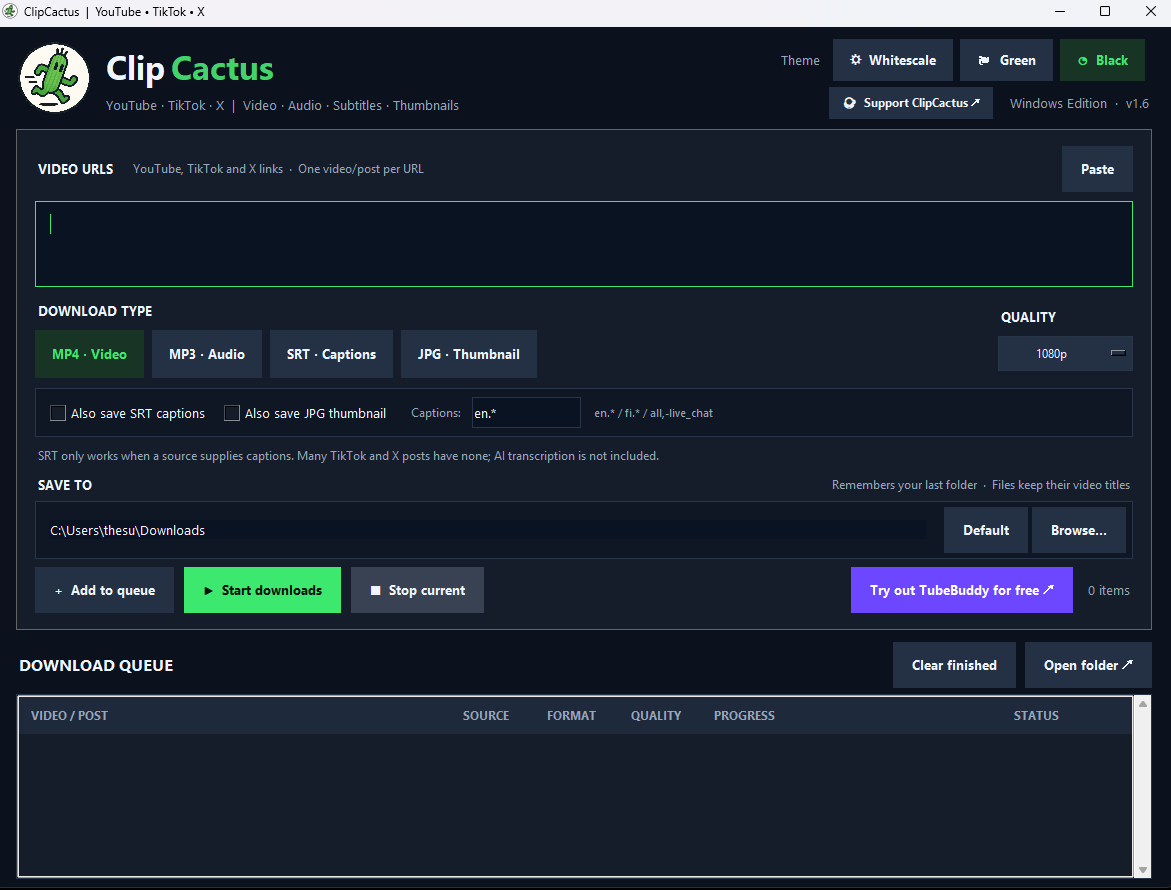
Three Themes, One Simple Interface
We’ve also made ClipCactus customizable, with three built-in interface themes:
- Whitescale: A clean, bright interface
- Green: A soft green theme inspired by the ClipCactus mascot
- Black: A dark interface for those who prefer darker desktop applications
All three themes share the same button positions and functionality. Your selected theme and download folder are remembered between application launches.
ClipCactus also includes our little running cactus mascot, giving the application a distinct identity.
How to Download YouTube Videos with ClipCactus
Getting started is simple.
- Visit the ClipCactus Gumroad download page and get the application package.
- Extract the downloaded files and run the included Windows setup script.
- Open ClipCactus using the application shortcut created during installation.
- Paste a YouTube video URL into the input field.
- Select MP4 or MP3, choose your preferred quality, and optionally enable subtitles or thumbnail downloads.
- Choose your download folder and add the video to the queue.
- Click Start downloads.
The setup process installs the required downloader components. Once installed, you can launch ClipCactus through its Windows shortcut.
Frequently Asked Questions
Is ClipCactus a free YouTube downloader?
Yes. ClipCactus is offered as a free Windows application, with no ClipCactus subscription required for its core downloading features.
Can I download YouTube videos in 4K?
ClipCactus supports selecting resolutions up to 2160p (4K UHD). Actual availability depends on the video and compatible downloadable formats.
Can I convert YouTube videos to MP3?
Yes. ClipCactus supports MP3 audio extraction with selectable output bitrates up to 320 kbps. Higher output settings do not improve the quality of the original source audio.
Does ClipCactus support TikTok and Twitter videos?
Yes. In addition to YouTube, ClipCactus supports publicly accessible TikTok videos and X (Twitter) posts containing downloadable videos.
Can ClipCactus download YouTube subtitles?
Yes. Available manual and automatically generated captions can be downloaded as SRT files, depending on the video.
Is ClipCactus available for macOS or Linux?
ClipCactus is currently packaged as a Windows desktop application.
Download ClipCactus for Free
If you’re tired of switching between YouTube downloader websites, MP3 converters, subtitle tools, and thumbnail grabbers, ClipCactus brings those functions together in one lightweight Windows application.
Download YouTube videos in MP4, extract MP3 audio, save available subtitles and thumbnails, and download supported TikTok and X videos—all without disruptive pop-up ads.
🌵 Get ClipCactus for Free on Gumroad
ClipCactus is an independent application and is not affiliated with or endorsed by YouTube, TikTok, or X. Download only content you own or are authorized to save, and respect applicable platform terms and copyright restrictions.
How to Install ClipCactus – Free YouTube Video Downloader for Windows
Installing ClipCactus is straightforward. Once the initial setup is complete, you can launch the application directly from your Windows desktop or Start Menu, just like any other Windows program.
ClipCactus supports Windows 10 and Windows 11 and lets you download supported YouTube, TikTok, and X (Twitter) videos as MP4 files, extract MP3 audio, and save available subtitles and thumbnails.
Step 1: Download ClipCactus for Free
First, visit the official ClipCactus download page on Gumroad:
Download the latest Windows package. The application is free, with no subscription required.
The download comes as a ZIP archive containing the application source files, setup scripts, and everything needed to build the Windows executable.
Step 2: Extract the ZIP File
Once the download finishes, locate the ZIP file in your Downloads folder.
- Right-click the ZIP file.
- Select Extract All.
- Choose a location for the extracted files.
- Open the extracted ClipCactus folder.
It’s important to extract the archive before running the installer, rather than launching the setup script directly from inside the ZIP file.
Step 3: Install Python (First-Time Setup Only)
The current ClipCactus package builds its Windows executable during installation, so Python 3.11 or newer is required for the initial setup.
If Python is not already installed, download it from the official Python website.
During installation, make sure the Python launcher is installed. Adding Python to PATH is also recommended.
You won’t need to launch Python manually to use ClipCactus after the application has been successfully installed.
Step 4: Run the ClipCactus Installer
Inside the extracted folder, find the file named:
SETUP_AND_RUN.bat
Double-click it to begin installation.
A Windows command window will appear and automatically perform the necessary setup tasks, including:
- Installing the required Python build dependencies.
- Downloading yt-dlp, FFmpeg, and Deno.
- Building the Windows executable,
ClipCactus.exe. - Installing the application into your Windows user profile.
- Creating Desktop and Start Menu shortcuts.
Important: The first installation can take several minutes and requires an internet connection. The setup may download more than 100 MB of dependencies.
You do not normally need administrator privileges.
Step 5: Launch ClipCactus
After installation completes successfully, ClipCactus should open automatically.
You will also find a ClipCactus shortcut on your Desktop and in the Windows Start Menu.
From this point onward, you can launch the program directly using either shortcut. You don’t need to rerun the setup script every time.
Step 6: Download Your First YouTube Video
With ClipCactus installed, downloading a supported YouTube video is simple:
- Copy the URL of a YouTube video you own or have permission to download.
- Open ClipCactus and paste the URL into the input field.
- Choose MP4 for video or MP3 for audio.
- Select your preferred quality, such as 720p, 1080p, 1440p, or 4K, where available.
- Optionally enable SRT subtitle or JPG thumbnail downloads.
- Click Browse to select your download folder.
- Click Add to queue, followed by Start downloads.
ClipCactus will display the download progress and save the completed files to your selected folder.
You can also paste supported TikTok and X video links into the same application



Leave a Reply